照片规格要求一览
本文档的官方规格摘要,已对照签发机构的要求核验。
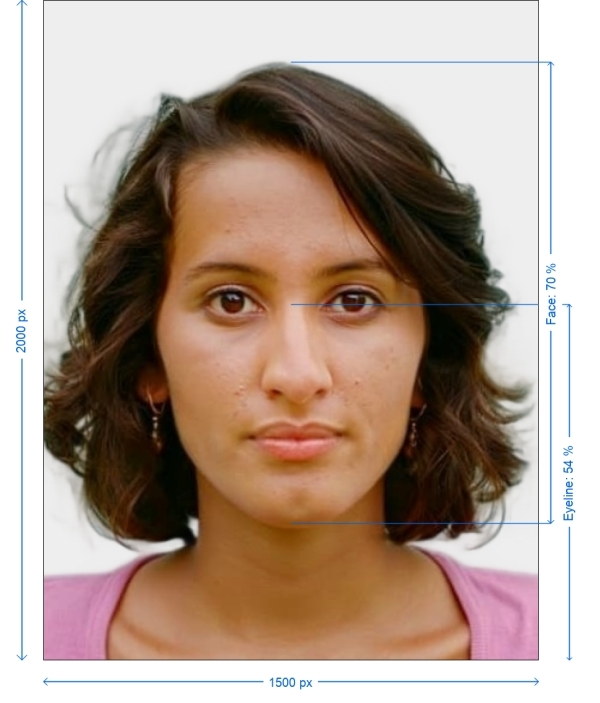
- 像素尺寸
- 1500x2000 px
- 分辨率
- 1 DPI
- 背景
- In color
- 头部高度
- 70 %
- 眼睛水平线
- 54 %
- 文件格式
- JPEG
- 眼镜
- 不允许
- 表情
- Neutral, eyes open, mouth closed
立即制作New Zealand Passport Online()
免费上传一张自拍,我们的照片转换器会自动调整尺寸并裁剪至精确规格。支持 iPhone、Android 与桌面端——无需前往照相馆。
拖动可重新定位 · 下方滑块免滚动
或从剪贴板粘贴照片
如健康问题影响照片,请勾选此框——需提供医疗证明。
合规检查
专家人工审核
合规专家审核您的照片并出具报告。通过率 99.2%。
打印排版页(多张)
in · 1 dpi · JPEG · 新西兰
批量处理——一次处理多张照片
已加载 0 张上传多张照片,它们将使用相同的背景和调整裁切到当前证件尺寸,然后一起打包为 ZIP 下载。
New Zealand Passport Photo: 900x1200 px Pic Online
You need to send in a photo that meets strict biometric standards when you apply for a New Zealand passport. It's more vital than ever to send in a photo that fits the required 900x1200 pixel resolution now that submissions are digital. If you don't, you could face delays or even rejection. We'll show you how to take a passport photo for New Zealand that meets official standards using only your phone in this article. You can get the right size, lighting, and formatting for your photos without going to a photo studio with programs like PhotoGov.net.


Get photo for: New Zealand Passport Online 900x1200 px
拖动可重新定位 · 下方滑块免滚动
或从剪贴板粘贴照片
如健康问题影响照片,请勾选此框——需提供医疗证明。
合规检查
专家人工审核
合规专家审核您的照片并出具报告。通过率 99.2%。
打印排版页(多张)
2x2 in · 300 dpi · JPEG · 美国
批量处理——一次处理多张照片
已加载 0 张上传多张照片,它们将使用相同的背景和调整裁切到当前证件尺寸,然后一起打包为 ZIP 下载。
How to Take a Picture for Your New Zealand Passport
Use your phone (ideally the back camera) to take a picture in front of a basic light background
Go to PhotoGov.net and choose "New Zealand Passport 900x1200 px" to upload it
Our program will automatically crop, resize, and change the photo to meet official standards
Download the optimized image so you may print it or send it in online
How to take your own New Zealand Passport Online photo
If you don’t want to go through the trouble and expense of locating and hiring a professional photographer to take your picture, you can simply take your own from home. So long as you follow the below instructions carefully, you can capture the perfect passport photo yourself:
1. Take a picture of yourself
Open up the PhotoGov.net photo service and take your picture. Make sure you’re not wearing any headcovers or glasses, do not wear a uniform, and keep your expression neutral. Ensure that the area is well-lit and that you are standing against a neutral background.
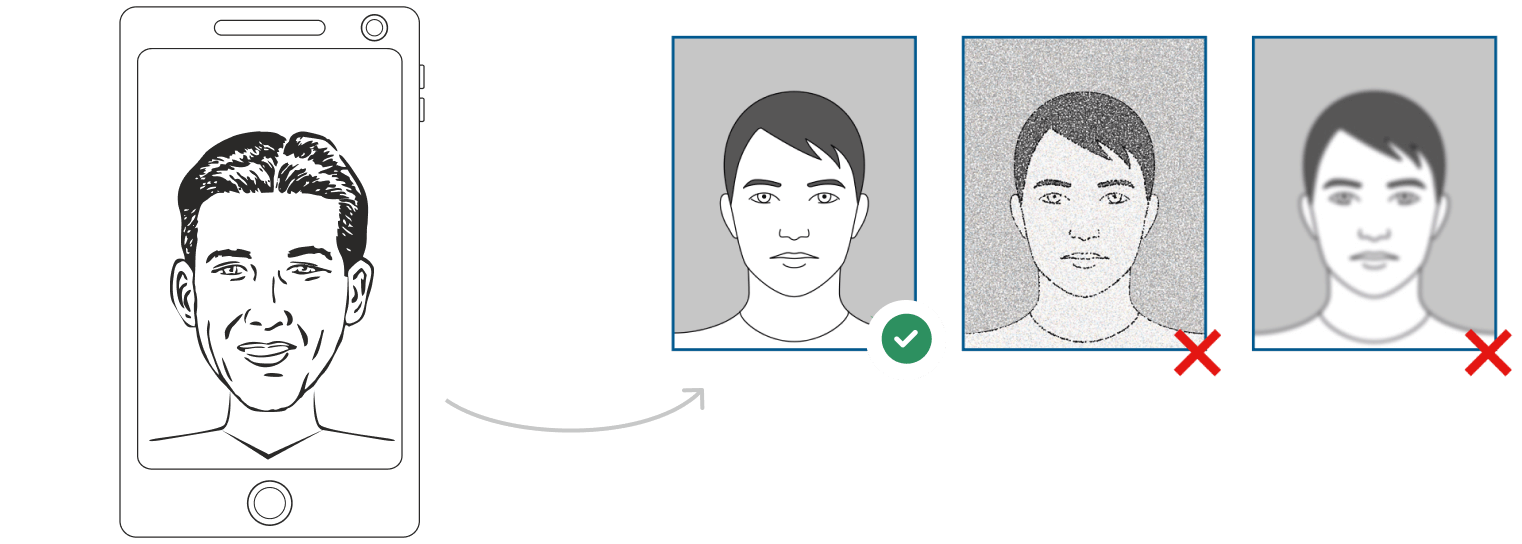
Watch "How to take a photo" (00:46)
2. Upload your photo to PhotoGov AI
Next, upload your image and process it through our site.
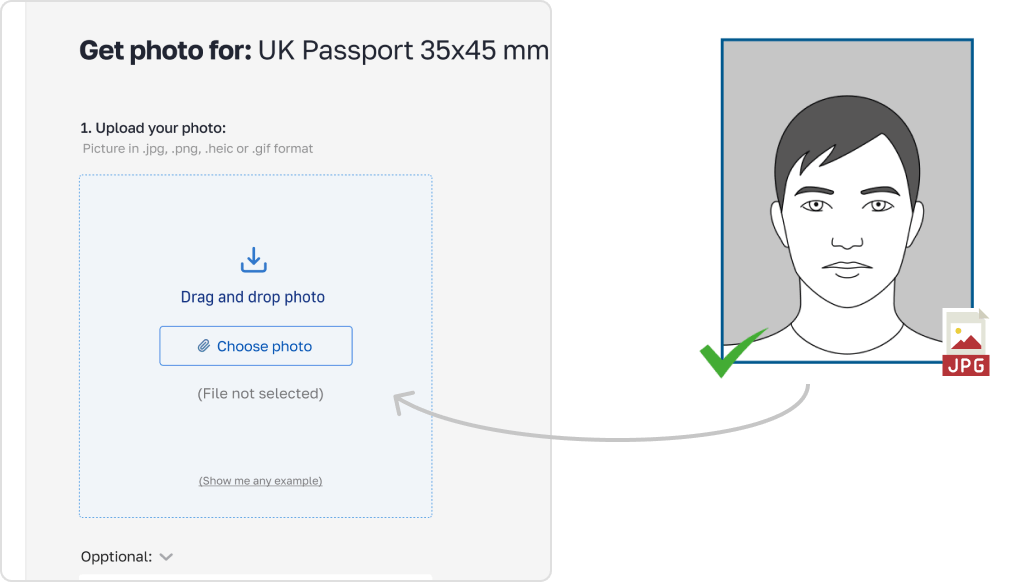
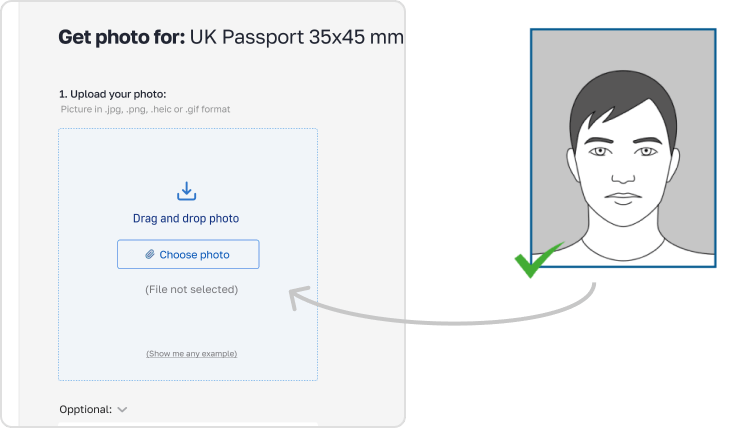
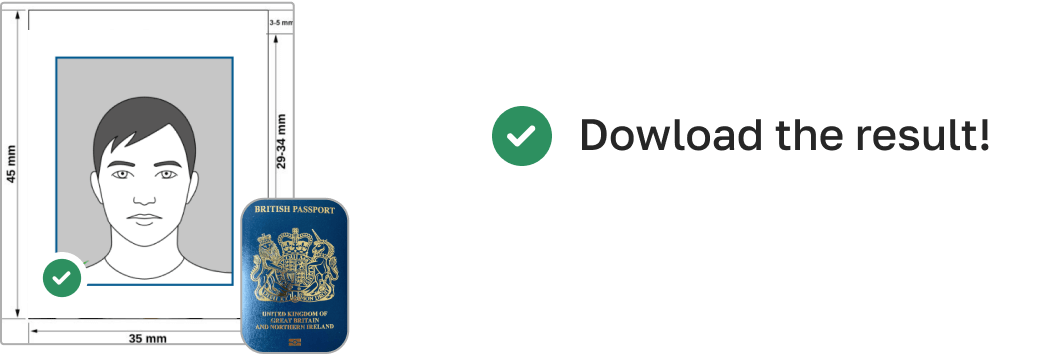
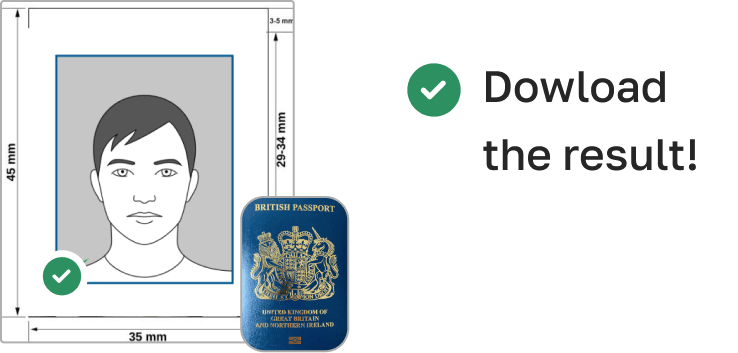
3. Receive your Passport Photo
Finally, you can download your ID photo. These images can be printed off, or you can simply use them as digital photos.
Official Rules for New Zealand Passport Photos
Here is a complete technical table for the digital version of the New Zealand passport photo:
| Wide | 900 pixels |
| Height | 1200 pixels |
| Aspect Ratio | 3:4 |
| Head Height (top of hair to chin) | Between 70% and 80% of image height (approx. 840–960 px) |
| Distance from top to top of hair | At least 6 mm space (approx. 60–80 px) |
| Image Definition Parameters | Sharp, clear, in color, no compression artifacts |
| Background Color | Plain, light grey, white or off-white |
| Resolution (dpi) | 300 dpi minimum for digital files |
| Facial Expression | Neutral, mouth closed, no smiling |
| Glasses | Not recommended; glare or frames over eyes = rejection |
| Head Covering | Only for religious/medical reasons; full face must be visible |
| File Format | JPEG or JPG |
| File Size | Between 250 KB and 10 MB |
| Printable | Not required for online submission |
| Suitable for Online Submission | Yes |
What makes New Zealand's rules different?
New Zealand has accepted digital submissions, which is different from many other countries that only accept printed passport images. This means that your photo must meet pixel-based standards (900x1200 px) and not just size limitations like 35x45 mm.
The head should take up 70% to 80% of the frame, and the lighting should be natural, with no harsh shadows or color casts. It is against the rules to use filters from phone apps.
How to Take a Compliant Picture at Home
For higher resolution, use the back camera on your phone
Stand in front of a window to get gentle, natural light. Don't use lights above your head
Make sure your eyes are level and your face is centered in the frame
Wear basic clothes that stand out against the light background
Don't smile or open your mouth; just keep your face neutral
After you take your picture, upload it to PhotoGov.net. Our AI technology will:
Cut your picture down to 900 by 1200 pixels
Put your head in the middle
If necessary, change the backdrop to a solid light gray
Make sure the file size is less than 500 KB
Create a digital version that may be sent online
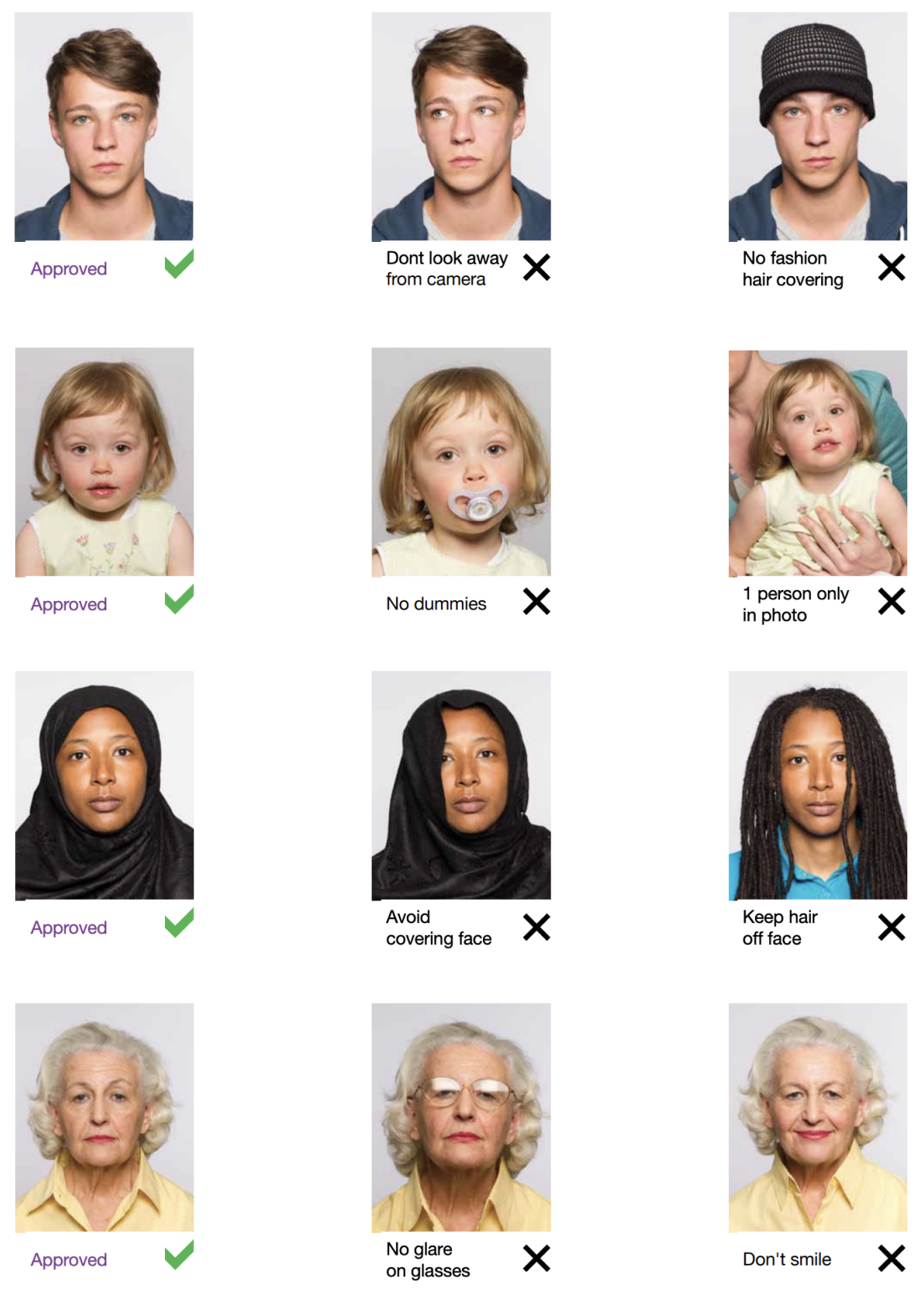
Example photos:
Below are examples of correct and incorrect photos
How to take New Zealand Passport Online photos for babies and kids

When taking pictures of babies and children for passport, many of the same rules apply; for example, they must still adhere to the dress code, and the photograph must be high-quality and well-lit. With that being said, the State Department is generally more forgiving when it comes to the neutral expression requirement.
- If you are photographing a newborn:
- Spread a white sheet out over the floor.
- Place the baby down on the sheet and take their photograph against it.
For slightly older babies:
- Prop them up in a child’s chair against a white sheet.
- If they are still unable to hold up their head, prop it up for them using a hand behind the sheet. Ensure no one else is visible in the shot.

Why should you use PhotoGov?
Guaranteed Compliance
Following New Zealand's DIA picture rules exactly
Auto-Sizing Functionality
Automatic cropping and changing the background
No need to go to a photo studio
PEG image in digital form that is ready to be sent
Full Compliance
No extra fees, no need to make an appointment
No specialized skills required
You don't need any specialized skills or knowledge to use our online passport photo service.
Mistakes that happen a lot and how to avoid them
Wrong size: sending in pictures that are 600x800 or 2x2 inches instead of 900x1200 px
Filters or retouching — this will automatically have your application turned down
Bad lighting — shadows or an inconsistent tone on the face
Smiling or tilting your head will both make your images non-biometric
Wearing glasses, especially ones with clear lenses, might induce glare
With PhotoGov, you don't have to worry about these problems because it has automated inspections and compliance tools
Frequently Asked Questions
Other documents for the New Zealand
作者: Olia Potiagaeva,总编辑 审核: PhotoGov 编辑团队 ★ 4.8 / 5.0 Google 已核验: New Zealand
本页目录:
- Get photo for: New Zealand Passport Online 900x1200 px
- How to Take a Picture for Your New Zealand Passport
- How to take your own New Zealand Passport Online photo
- Official Rules for New Zealand Passport Photos
- What makes New Zealand's rules different?
- How to Take a Compliant Picture at Home
- Example photos:
- How to take New Zealand Passport Online photos for babies and kids
- Why should you use PhotoGov?
- Mistakes that happen a lot and how to avoid them
- Frequently Asked Questions
PhotoGov.net 严格遵守 全球证件照规范.